

Translate text from document photos and screenshots
Choose up to five JPG or PNG document images or paste a screenshot. Prepare a PDF locally, or choose the action that prepares and uploads it for translation. Translation produces a PDF. After signing in, you can export a translated page as a flattened PNG from the task, or render a downloaded PDF below. The image is not an editable document.
Prepare document photosPrepare your photos locally
Photograph each page clearly, without glare, blur or cropped text. Use files you are allowed to translate. Preview, rotate and arrange the photos in reading order, then inspect the prepared PDF before uploading.
Translate a multi-page document from photos
Choose up to 5 JPG or PNG photos (20 MiB total, 40 million pixels each). Preview, rotate and order them to prepare a local PDF. Upload separately for a translated PDF. Check text and numbers; blurry text may be missed.
The example image is fetched from this site. Preparing a PDF stays in your browser; translation requires a separate upload.
Paste a screenshot here
Focus this area and paste a JPG or PNG screenshot with Ctrl+V or ⌘+V. It is added locally; uploading is a separate step.
How to translate a document photo or screenshot
- Prepare the pages. Choose up to five JPG or PNG images, or focus the paste area and paste a screenshot. Preview and rotate the images, then prepare a PDF in this browser. The selected photos are not uploaded during preparation.
- Choose to upload. Select “Upload prepared PDF for translation”. Confirm the detected source and target languages and select file pages. An eligible trial covers the first three file pages; review any credit cost before starting.
- Review the translation. Compare the original and translated pages, especially dates, names, numbers, text inside images and lines near the page edges. Sign in when required to download.
- Choose your output. Download the translated PDF, or use the PNG control in the task after signing in. You can also choose a downloaded PDF in the local PNG tool below. PNG is a flattened page, not an editable image translation.
Need only a quick translation of text in one image? Google Translate describes an image workflow. Scanfile's approach prepares a multi-page PDF first and offers page selection and a downloadable PDF; check the output format and privacy terms before choosing a service.
Translate a screenshot of a document
Copy a screenshot, focus “Paste a screenshot here” in the photo preparation area and press Ctrl+V or ⌘+V. You can also choose a saved JPG or PNG. Up to five images can be combined, with a 20 MiB total limit and at most 40 million pixels per image. The images are prepared locally; choose the separate upload action when you are ready to translate the PDF.
Scanfile returns a translated PDF, not editable text overlaid on the original screenshot. A translated page can also be exported as a flattened PNG after sign-in, or from a downloaded PDF below. Check small text, numbers and the translated layout; screenshots of chats, websites or graphics may not translate reliably.
Try preparing a fictional screenshot
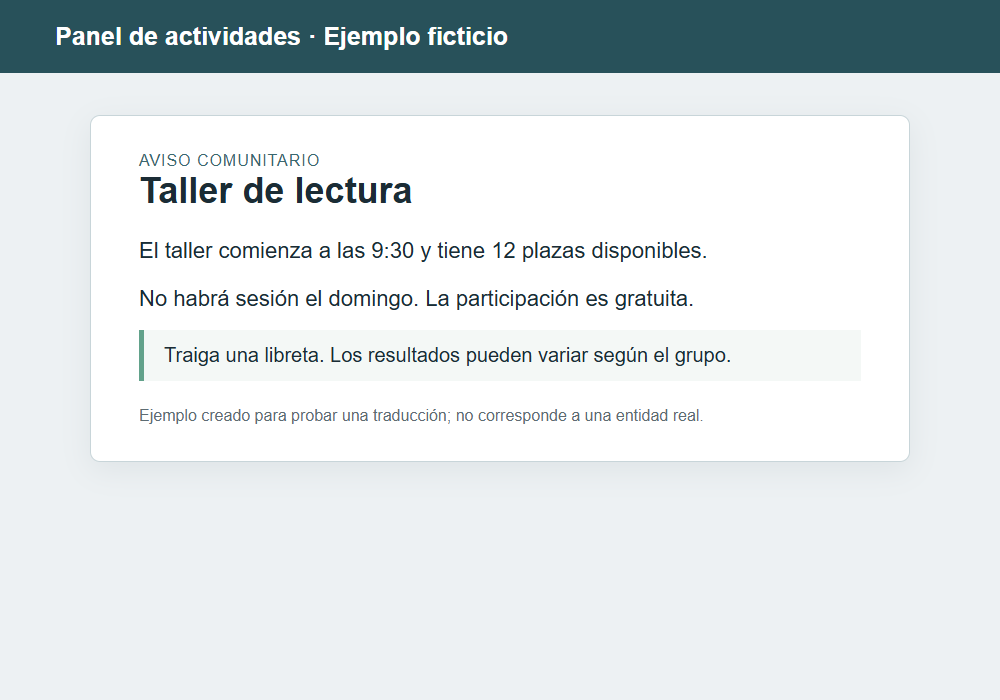
This Spanish-language screenshot was created for this demonstration. It is an input example, not a translated result. Load it in the preparation tool above to preview and create a PDF without uploading it. Translation is a separate action and is subject to the available trial or displayed credits.
See one image-only document and its translation
This fictional Japanese notice was made as a clean, image-only PDF, not photographed with a phone. Its unedited English result came from a Scanfile translation. The font and spacing changed and the border was omitted; one clean page does not establish results for other photos, handwriting or tables. There was no independent linguistic review.
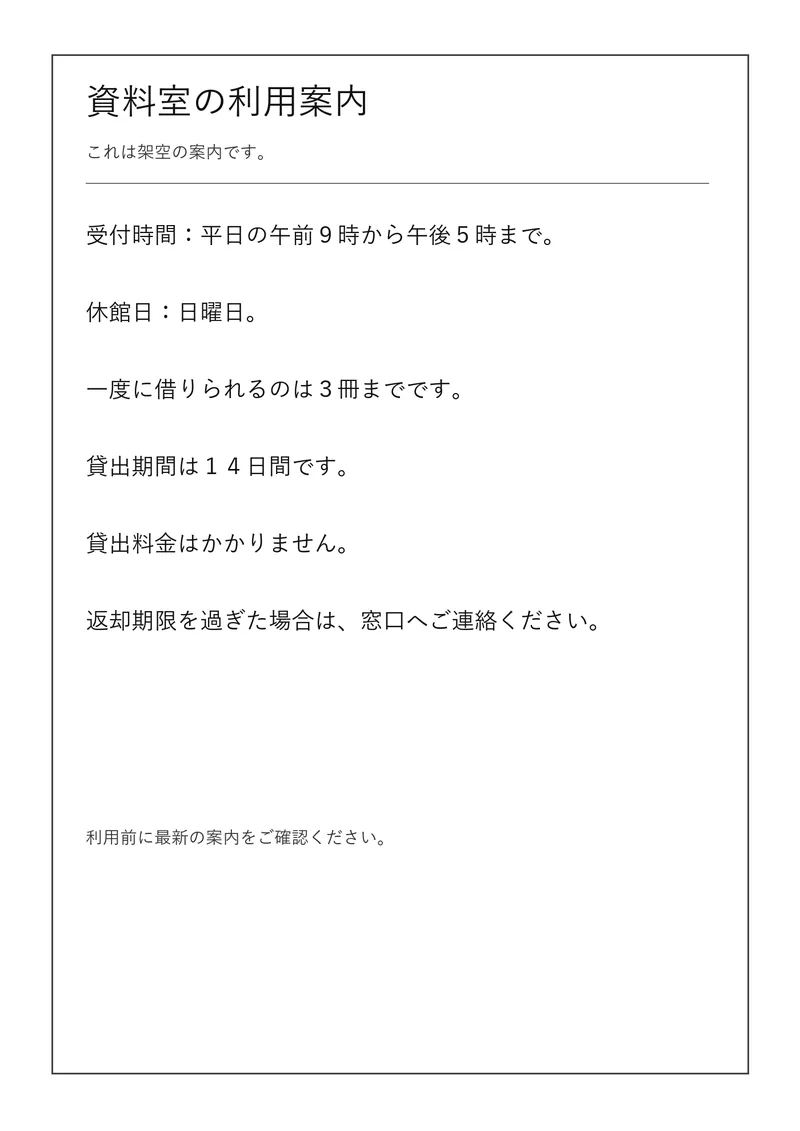
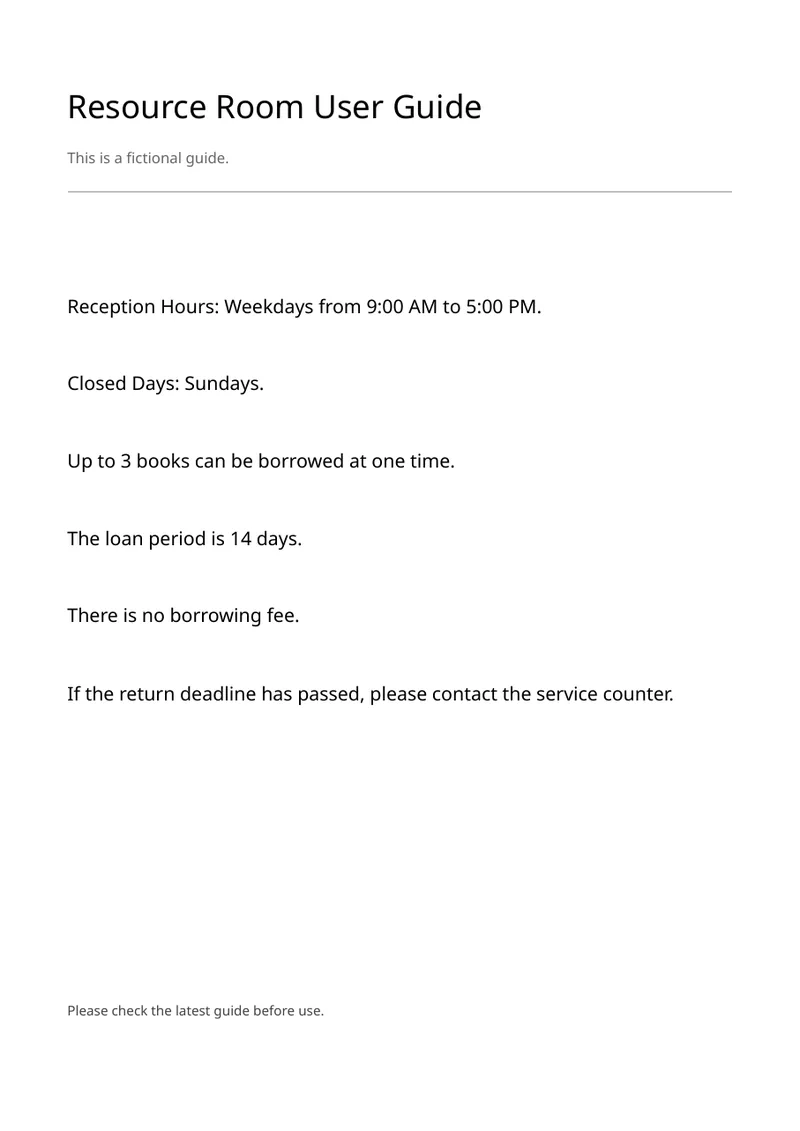
Download original PDF · Download actual English PDF · See the example and its review notes
Translating a receipt or invoice photo?
For a single receipt, inspect a fictional receipt and its actual English translation, then check item names, dates, currency and totals against your original. For an invoice, review the invoice checklist, including payment terms and numbers. These are reading aids, not financial verification or certified translations.
If you switch tools, choose your files again; this page does not transfer the selected photos. Financial documents can contain sensitive details. Only upload documents you are authorized and comfortable sharing.
Upload the prepared PDF for translation
Only upload when you choose to. After upload, confirm the detected source and target languages and review your pages. An eligible trial covers the first three file pages; other pages use the credits shown before confirmation.
Copy text from the translated PDF
After signing in, choose Extract translated text in the task to copy or download the available PDF text layer. Extraction happens in your browser and does not perform OCR; some pages may have no text. Compare the text with the PDF.
Download a translated page as an image
After translation, sign in and use the PNG control on the task page to export one translated page. Alternatively, download the translated PDF and select it below. Choose a page to render as PNG; repeat for another page. The local tool does not translate or automatically transfer your task file.
Rendering happens in your browser, one page at a time. The PDF must be accessible and no larger than 25 MiB or 300 pages. The PNG is a flattened image: text is not selectable, and links, forms and accessibility tags are not retained. Rendering is not redaction or a quality check. The earlier translation step uploads your PDF.
Review the result against the original
Photo preparation does not recognize or translate text. The uploaded PDF is processed for translation. Blurred or cropped words, small labels, handwriting and complex layouts may be missed or changed. Compare names, numbers, units and important passages with your source.
See an actual image-only PDF translation example. It is a clean one-page scan, not a phone photo, and does not establish results for other images. Translation is not certified human translation.
Compare an original and translated PDF locally · Review credits