

PDF translation guide · Scanfile
How to translate a PDF and review its formatting
A translated PDF can look close to its source and still contain shifted lines, changed numbers or text in the wrong place. Choose the right source file and compare representative pages before relying on the result.
Start with the file you actually have
| Source | Practical option |
|---|---|
| Editable Word document | If you need to edit the translation, start with the Word source in a compatible document translator. Scanfile does not currently accept DOC or DOCX. Compare Word workflows. |
| PowerPoint | Keep the original presentation and use a presentation workflow if you need an editable PPTX. Inspect text fit, notes, charts and images afterwards. Open the PowerPoint translator. |
| PDF or scan | A PDF translator returns a reading copy to inspect. For a scan, start with a clear page; small or cropped text can be missed. Review both translation and layout. |
This guide is published by Scanfile, which offers the PDF and PowerPoint workflows linked here. Only upload files you are authorized and comfortable sharing; check each service’s privacy and pricing.
Translate a PDF in Adobe Acrobat using Express
Adobe documents a workflow that starts in Acrobat and opens the file in Adobe Express. In Acrobat, open your PDF, choose Convert → Translate this PDF, then in Express select the target language and choose all pages, one page or specific text. Review the preview and download the translated PDF. Check Adobe’s current availability and requirements for your account and device before starting.
Adobe says translation may be skipped for scanned, secured, large or complex PDFs, and for unsupported fonts or languages. Check the actual output page by page; a downloaded file does not establish that every part was translated. Read Adobe’s Acrobat-to-Express instructions.
If you have a clear scan and need a different workflow, review Scanfile’s scanned-PDF process and examples. Scanfile uploads the whole PDF before page selection; the trial and credit cost are shown before translation. Scans and complex tables can still contain recognition or layout errors. This guide is published by Scanfile; we have not compared the two services on the same files.
Translate a PDF and compare the result
- Keep the original PDF. For a scan, check that page edges, small text and table headings are legible.
- Choose the file in the PDF translator, confirm the source and target languages, select file-page positions and review the trial or displayed credits. The whole selected PDF is uploaded before you select pages.
- Download the translated PDF while available. If only some pages were translated, note which original page corresponds to each output page.
- Open both PDFs in the local comparison reader. Select matching pages and inspect the source and output side by side. Comparison does not upload the chosen PDFs, translate them or automatically detect mistakes; site assets and usage analytics may use the network.
An eligible trial covers the first three file pages; confirm eligibility and cost in the translation flow. Keep the original even if the result looks correct at first glance.
Example: a Spanish invoice translated into English
This fictional one-page invoice was created by Scanfile and translated through its PDF workflow. The previews below are rendered from the Spanish original and the actual, unedited English result; a PDF viewer may render fonts differently.
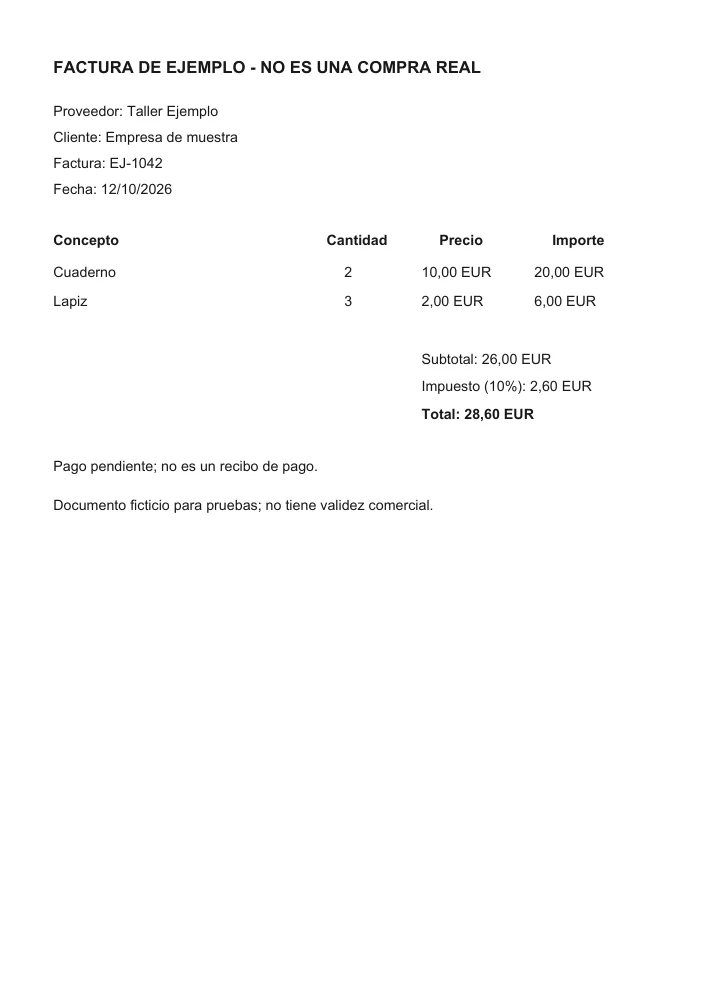
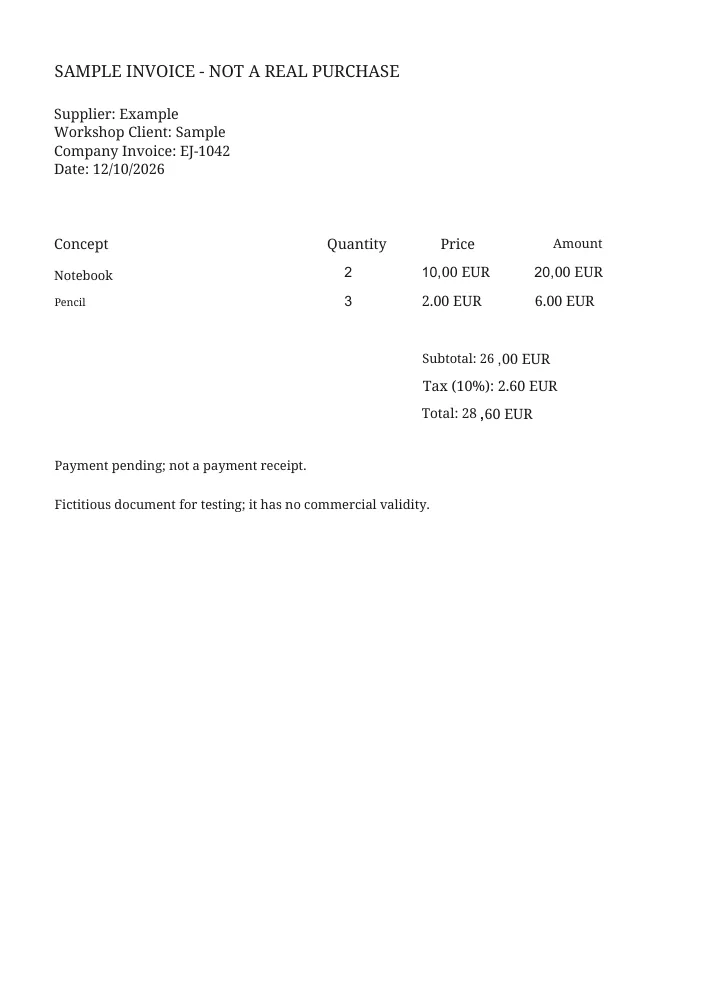
In this example, supplier, client and invoice labels merged across lines. Decimal formatting also became inconsistent: the output mixes commas and points and adds spaces before some commas. The quantities and totals were retained in this one sample, but their appearance needs checking in context. It is fictional, was not independently reviewed and is not a benchmark for other files or financial decisions.
Download Spanish originalDownload unedited English PDFRead the full example and limitations
Check whether the translated PDF can be searched and copied
A page can look readable while its underlying text is different. Before relying on search or quotation, select a short sentence in your intended PDF reader, copy it into a plain-text editor and compare the pasted text with what you see. Try a search for the same sentence. Check another page with columns, tables or unusual characters. A successful test on one sentence does not prove the entire document is searchable or accessible.
A real example: visible words with unexpected characters
In a fictional Spanish reading brief translated by Scanfile on October 25, 2026, the unedited English result looked readable. When we extracted the first page with PDF.js 6.3.289, it contained 130 U+0003 control characters; the phrase “An hour of reading” was not found literally, but appeared after replacing that character with a space in the extracted text. This is one historical result, not evidence of how current translations or other PDFs behave. Different readers may extract text differently.
Download Spanish originalDownload unedited English resultSee the reproducible extraction check
The extraction check does not repair the PDF. Replacing characters in copied text is not a general fix and may change meaning. Keep the original, review the complete passage and use a suitable searchable copy or qualified review when reliable extraction matters.
You can also inspect extracted PDF text in your browser. Extraction does not upload the selected file or perform OCR; it normalizes text, so results may differ from your reader. Site assets and privacy-controlled usage analytics may use the network. For a reference manager, see Zotero’s search troubleshooting guidance.
A page-by-page formatting checklist
- Structure: compare the page order, columns, headings, footnotes and table rows. Check that text has not moved into a neighboring cell.
- Numbers and labels: check signs, decimal separators, currency, units, dates and which label belongs to each value. Similar-looking punctuation can change meaning.
- Visibility: look for clipped lines, overlapping words, small labels, diagrams, stamps and image text. Scanned text and handwriting can be missed.
- Use and editing: compare meaning as well as appearance. A translated PDF is not a guarantee of editable source structure or official acceptance. For consequential or certified uses, confirm requirements and obtain qualified human review.
Open the local PDF comparison reader · Review a two-column translation example · Translate a PDF